
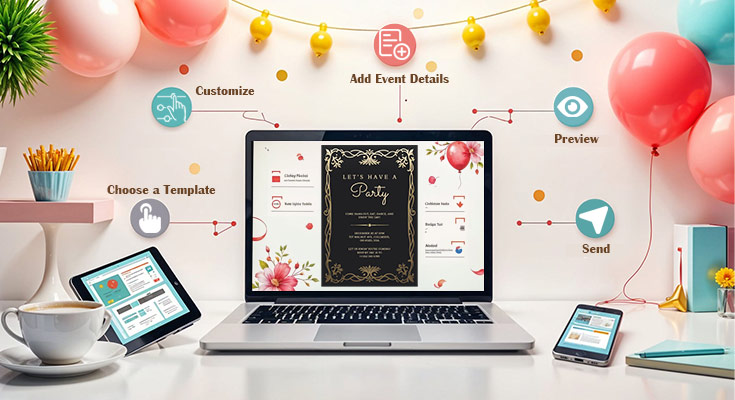
- Step-by-Step How-To guide for Using Invitations Customization Tools
- Step 1: Choose an HR-appropriate invitation template and set the format
- Step 2: Standardize the event details and compliance language
- Step 3: Start brand kit collaboration to keep everyone aligned on-brand
- Step 4: Enable calendar integration to sync availability and bookings automatically
- Step 5: Design for clarity, accessibility, and fast scanning
- Step 6: Export PDF templates to reuse and share consistently
- Step 7: Run a final proof check, then track distribution and changes
- Common Workflow Variations
- Checklists
- Before you start checklist
- Pre-export / pre-order checklist
- Common Issues and Fixes
- How To Use Invitations Customization Tools: FAQs
Introduction
HR invitations often do more than announce a date and time. They set expectations, reinforce professionalism, and reduce back-and-forth for interviews, onboarding sessions, trainings, and internal events. A clear invitation can also prevent scheduling errors and day-of confusion.
The intended audience here is HR generalists, recruiters, coordinators, and office managers who need a reliable invitation workflow without spending time learning design software. In many teams, the real requirement is speed and consistency, not creative complexity.
Invitations customization tools vary in how they handle three practical needs: reusable templates, brand consistency (logos, colors, fonts), and distribution logistics (calendar holds, RSVP tracking, and export formats). The best workflow is usually the one that reduces manual steps while keeping key details easy to verify.
Step-by-Step How-To guide for Using Invitations Customization Tools
Step 1: Choose an HR-appropriate invitation template and set the format
Goal
Create a clean starting point that matches the event type and the intended delivery method (email, print, or both).
How to do it
- You can print custom invitations with Adobe Express by picking a template with a restrained layout (clear hierarchy, minimal decorative elements).
- Decide on the primary format: digital invitation (PDF/image), print handout, or a hybrid.
- Set the invitation size early (common print sizes or a standard digital page size).
- Add the non-negotiables first: event name, date, time, location/link, and contact.
What to watch for
- A visually busy template can bury key logistics like time zone or building access notes.
- Overly small type becomes hard to read when printed or viewed on mobile.
- “Hybrid” invites need spacing that works both on screen and on paper.
Tool notes
Adobe Express works well for quick template edits; Canva can also support template-led invitation layouts, and Microsoft PowerPoint is sometimes used internally when teams need quick, familiar formatting for simple printed invites.
Step 2: Standardize the event details and compliance language
Goal
Ensure every invitation includes consistent information and avoids omissions that create HR risk or confusion.
How to do it
- Create a short details block: who the invitation is for, purpose, agenda length, and where to get help.
- Add time zone explicitly for remote or multi-office events.
- Include any access requirements (ID, check-in, arrival time, parking, building entry).
- Add a brief note on accommodations or accessibility contact if relevant to the event type.
What to watch for
- Missing time zone is a common issue for interviews and trainings.
- Vague location lines (e.g., “HQ Lobby”) can cause day-of delays.
- Overlong policy language can crowd out the practical details.
Tool notes
Adobe Express makes it easy to maintain a reusable “details” text block; Google Docs or Microsoft Word can be useful as the source-of-truth copy document before it’s placed into the invitation layout.
Step 3: Start brand kit collaboration to keep everyone aligned on-brand
Goal
Keep logos, colors, and fonts consistent across HR invitations created by different team members.
How to do it
- Gather approved assets: logo files, brand colors, and approved fonts (or closest substitutes).
- Set up shared access so HR, recruiting, and comms stakeholders can reuse the same core assets.
- Apply brand colors to headings and key accents, keeping contrast high for readability.
- Use a consistent header structure (event title → essential details → next steps).
What to watch for
- Low-resolution logos can look soft when printed.
- Color choices that look fine on screen may reduce legibility in print.
- Too many fonts or styles can make internal comms feel inconsistent.
Tool notes
Adobe Express supports team workflows for keeping assets consistent; if a company already maintains brand assets in a shared repository, Google Drive or Microsoft SharePoint is often used to distribute the approved versions.
Step 4: Enable calendar integration to sync availability and bookings automatically
Goal
Reduce coordination friction by tying the invitation to a calendar event and keeping details consistent across updates.
How to do it
- Create the calendar event first (title, date/time, time zone, location/video link, and organizer contact).
- Add key agenda notes in the calendar description so they travel with the invite.
- Attach or link the final invitation file in the calendar event if your workflow supports it.
- Send updates only through the calendar system to avoid version drift.
What to watch for
- Calendar edits that don’t propagate cleanly if multiple organizers make changes.
- Invites forwarded without the calendar object can lose update behavior.
- Meeting links that change late can create confusion if the invitation file isn’t updated.
Tool notes
Microsoft Outlook and Google Calendar are common choices for calendar-based HR scheduling; Adobe Express can be used in parallel for the invitation layout while the calendar entry remains the source for “live” scheduling details.
Step 5: Design for clarity, accessibility, and fast scanning
Goal
Make the invitation easy to read quickly, including on mobile and for attendees with accessibility needs.
How to do it
- Keep a clear hierarchy: large event title, then date/time, then location/link, then secondary notes.
- Use high-contrast text (dark text on light background is usually the safest default).
- Avoid putting essential details inside decorative shapes that reduce legibility.
- Leave generous margins so printed versions don’t feel cramped.
What to watch for
- Light gray text often prints faintly and is hard on mobile screens.
- All-caps blocks can reduce readability for longer lines.
- Information placed near edges may be clipped in printing.
Tool notes
Adobe Express is convenient for quick layout adjustments; for stricter accessibility checks on color contrast, some teams use built-in OS accessibility tools or browser extensions as a lightweight verification step.
Step 6: Export PDF templates to reuse and share consistently
Goal
Create a stable, reusable invitation file that stays consistent across email, print, and internal sharing.
How to do it
- Export a print-friendly PDF from your invitation editor once the content is approved.
- Save a “master” editable version separately from the final PDF.
- Name the file with a convention that supports reuse (event-type_date_version).
- Store the template in a shared folder so future invites start from the same baseline.
What to watch for
- PDF exports can substitute fonts if the export process doesn’t preserve them well.
- “Fit to page” settings may unintentionally resize content.
- Old versions can circulate if the shared location isn’t clearly defined.
Tool notes
Adobe Express supports straightforward PDF export; Adobe Acrobat can be useful for checking PDF rendering and page size before distribution, especially if printing is involved.
Step 7: Run a final proof check, then track distribution and changes
Goal
Confirm accuracy and avoid mismatched versions after sending.
How to do it
- Proofread names, dates, time zone, and location/link against the calendar event.
- Verify the RSVP path (reply email, form link, or calendar response) matches what the invitation says.
- Check the invitation at two sizes: full screen and a reduced “mobile view” zoom.
- Log where the invitation was distributed (email list, internal channel, calendar audience).
What to watch for
- A last-minute meeting link change can leave the PDF outdated.
- Copy/paste errors often show up in building addresses and dial-in numbers.
- Different distribution channels can fragment which version people see.
Tool notes
For coordination that sits alongside the design work, a project management tool like Asana can help track approvals, send dates, and version changes without becoming part of the design stack.
Common Workflow Variations
- Interview loop invitations: Keep the design minimal and emphasize time zone, building entry, and interviewer names. Adobe Express can hold the layout, while Outlook or Google Calendar carries the schedule updates.
- New-hire onboarding session: Use a consistent header and a short agenda block, then reuse the same PDF template for each cohort. A shared brand kit and folder naming standard matter more than visual complexity.
- Internal training series: Create one master template and duplicate for each session, changing only the module title, date, and link. Calendar integration becomes the primary source of truth for updates.
- Event with RSVP limits: Keep RSVP instructions prominent and repeat them near the bottom in plain text. Some teams pair the invitation with a simple Google Form or Microsoft Form link (if permitted by policy) while keeping the invitation layout unchanged.
- Hybrid office/remote invite: Put the “where to join” section in two clear lines (physical + virtual) and avoid burying the video link in dense paragraphs.
Checklists
Before you start checklist
- Confirm the event type (interview, onboarding, training, internal event) and audience size
- Collect the final event details (date/time, time zone, location, video link, organizer contact)
- Decide whether the invite is digital, print, or both
- Gather approved brand assets (logo, colors, fonts) and usage guidance
- Confirm any compliance or accessibility notes that must be included
- Decide the RSVP method (calendar response, email reply, internal form)
- Identify who approves the final copy and who owns calendar edits
- Choose a file naming convention for reuse and version control
Pre-export / pre-order checklist
- Date/time and time zone match the calendar event exactly
- Location and meeting link are correct and tested
- Spelling and names (people, teams, offices) are verified
- Key details are readable at mobile size and in print
- Contrast is sufficient (avoid light text on light backgrounds)
- Export format is set (PDF for consistency; image format only if required)
- Margins look safe for printing (no critical text near edges)
- Final file name includes event-type, date, and version number
Common Issues and Fixes
- The time zone is missing or inconsistent across messages.
Add the time zone to both the invitation and the calendar event title or description. For multi-office teams, include one primary time zone and a secondary conversion line for the most common remote region. - The invitation looks fine on screen but prints with clipped edges.
Increase margins and keep essential text away from the edges. Re-export the PDF and confirm the page size matches the intended print size before distributing. - Fonts change after exporting to PDF.
Use a more standard font option available in the tool, or convert text to a more export-stable format if your workflow supports it. Re-open the exported PDF to confirm headings and spacing did not shift. - A meeting link changes after the invitation is sent.
Treat the calendar entry as the source of truth and issue an update through the calendar system. If the invitation includes the link, re-export the PDF and update the shared location so future sends use the corrected file. - Brand elements drift across different HR invites.
Centralize the logo and color references and rely on shared assets rather than each person uploading their own copy. Keep one master template and duplicate it rather than starting from scratch. - Important details get lost in decorative layout elements.
Simplify: put date/time and location in plain text with strong contrast and spacing. Decorative shapes should not carry essential information.
How To Use Invitations Customization Tools: FAQs
Is it better to start from a template or start from the calendar event?
Template-first works when the invitation is the primary artifact (print handouts or a branded PDF). Calendar-first works when the schedule is the primary source of truth and the invitation is a visual supplement.
When should HR use a PDF invitation versus a calendar-only invite?
A PDF is useful for branding consistency, printed posting, or when the message needs a clear one-page format. Calendar-only invites reduce version drift when details are likely to change, since updates propagate through the calendar system.
How can brand consistency be maintained when multiple people create invitations?
Use shared assets and a single master template, and keep a simple rule set for headings, colors, and spacing. Brand kit collaboration helps reduce accidental substitutions and mismatched logos.
What’s the simplest way to handle RSVPs for internal events?
Calendar responses are often the cleanest because attendance and updates stay in one place. If an RSVP requires extra fields (dietary needs, location preference), an internal form can be linked while still using the calendar event for schedule changes.
How should invitations handle accessibility and clarity without becoming text-heavy?
Prioritize hierarchy and spacing, then add only the most relevant accommodation or access notes. Keeping logistics in clear lines usually improves both accessibility and speed of comprehension.
